 FileDesk
Features
Everything a tax practice actually does — and nothing it doesn't.
FileDesk was built by watching how Pakistani agencies really work: a client walks in, a case is opened, a fee is agreed, papers are collected, a return is filed, money arrives in instalments. Every screen follows that line.
Keep scrolling: every management capability is numbered so you can count exactly what FileDesk replaces in the daily running of an agency.
Built-in working tools
Start with the job, not a blank spreadsheet
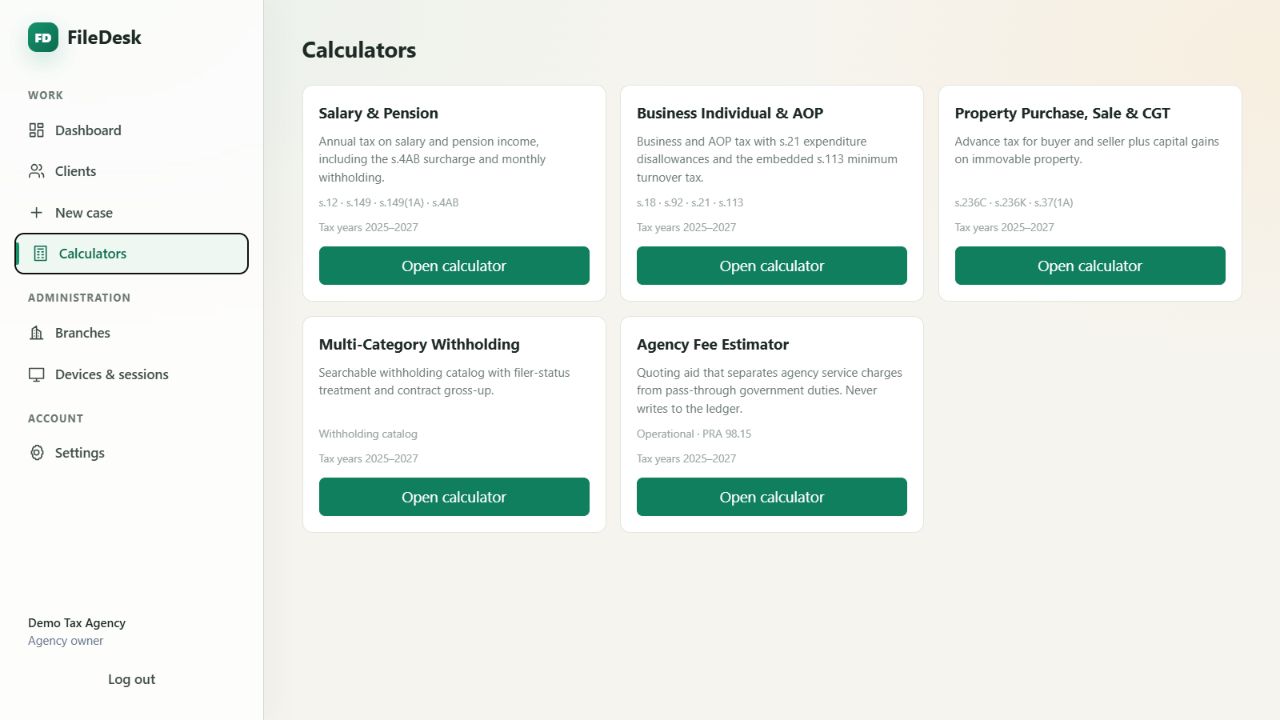
Five calculators arrive with FileDesk and use the same clear interface across agency owners and branches.
Clients
The record you actually need
Identity that matches FBR
Name, CNIC, NTN, organisation and filer status — Filer, Late Filer, Non-Filer or Unknown — editable in place as a client's standing changes.
Contacts and notes
Phone numbers and emails with validation that matches the portal's own rules. Notes are current text, not an audit trail nobody reads.
Encrypted credential wallet
One portal login per client, encrypted at rest. The username is derived from the CNIC, so it can never drift out of step with the identity.
Search that finds people
By name, CNIC or NTN — with filters for outstanding bills, unsubmitted returns, open cases and inactive clients. A filter alone gives you the whole worklist.
Client documents
Scan it on the spot. Find it in seconds.
CNICs, deeds, bank statements and notices go straight into the client's file — scanned with a phone camera or uploaded from a computer.
A scanner in every phone
Take a photo or pick one from the gallery. FileDesk finds the edges of the page and flattens it square, even when the photo was taken at an angle.
Corners you can correct
If an edge is not quite right, drag that corner into place — a magnifier shows exactly where it sits — or rotate the page.
Clean, readable pages
Choose Original, Enhanced, Grayscale or Black & white for each page, so faint text and grey paper are easier to read.
Many pages, one PDF
Add as many pages as the document has, put them in order, drop a bad one, and save them together as a single PDF.
Or upload the file
Already have it digitally? Upload a PDF, JPEG or PNG from the phone or the computer instead.
Filed by kind and tax year
Give each document a title, a kind — identity, bank statement, property, vehicle, salary, tax, utility, investment or loan — and a tax year. For anything else, choose Other and type what it is.
See it before you open it
Every document shows a preview of its first page, with its kind, tax year, pages and who added it. Tap to open it in a new tab, or download it.
Quick to reopen
Previews and small documents are kept on the device in encrypted form, so scrolling back and reopening is fast. That copy is erased when you sign out.
Permissions per branch
Decide separately whether each branch may upload, view or delete documents. Deleting stays off for a branch until you turn it on.
How a client's document is protected
- ✓Scanned on the device. Finding the edges, flattening and cleaning all happen on the phone or computer. The photos themselves are never uploaded — only the finished PDF is saved.
- ✓Encrypted before it is saved. Each document, and its preview, is locked with its own key on the phone or computer before it is saved. The stored copy is unreadable without that key.
- ✓Opened only with permission. Only your agency's signed-in staff with document access can open it, and every opening is recorded in the activity log.
- ✓Never sent to AI. Scans and stored documents are never sent to any AI service.
A client's CNIC belongs in the client's file — not in a staff member's phone gallery or a WhatsApp chat.
Because FileDesk holds the keys, it can let your permitted staff open a document on any of their signed-in devices. The privacy policy explains exactly who can unlock what, and where documents are kept.
Wealth statement register
The wealth statement, built from what actually happened
Each client's assets and liabilities, kept the way the wealth statement asks for them — and every change a dated event, so each tax year explains itself.
Everything they own and owe
Property, vehicles, bank accounts, investments, gold and jewellery, cash in hand and liabilities. For anything else, choose Other assets and type what it is — a prize bond, say.
Dated events, not edited totals
Record an opening value, then each purchase, sale, gift received or given, inheritance, deposit, withdrawal, loan taken or loan repaid — with the other party and a note.
Values that always add up
An item's value is worked out from its events — nobody types in a total — so the register cannot drift away from its own history.
Sales that show the gain
Record the cost of what was sold and, if you have them, the sale proceeds. FileDesk shows the gain or loss beside the sale.
The tax year, worked out
Every event lands in the right tax year from its date — 1 July to 30 June, named for the year it ends. A purchase on 15 August 2024 is TY2025.
Opening + movements = closing
For every tax year: opening net worth, each kind of movement, closing net worth, and the closing assets and liabilities behind it.
Evidence on the event
Scan or upload the sale deed, gift deed or bank letter straight onto the event it proves. It is filed with the client's documents and marked as linked.
Amounts only where they belong
A data-entry branch — allowed to edit clients but not to see amounts — can record events without reading a value back. It sees ••• and no net-worth figures.
An optional AI summary
One tap turns the timeline into a plain-English summary for you to check before you rely on it. What it sees, and what it never sees, is set out below.
FileDesk keeps the record you prepare the wealth statement from. It does not file anything with FBR, and it is not affiliated with FBR.
Optional AI summary
A first draft of the story — for you to check.
Ask for a plain-English summary of a client's register: what happened and when, how net worth moved in each tax year, and the points you may need to explain.
- ✓Optional, and on request. Summaries are available only while AI is switched on for the FileDesk service; your agency decides who can use them through who may see amounts, and nothing is sent until someone presses Summarise.
- ✓Only the timeline is sent. Dates, kinds of asset, events, amounts and sale proceeds, each year's net-worth totals, and your descriptions and notes — never the client's name, the other parties you recorded or your reference numbers. CNIC, NTN, phone numbers, e-mail addresses and other long numbers are removed from descriptions and notes automatically. Names are not, so keep names out of descriptions and notes.
- ✓Documents never go to AI. Scans and stored files are never sent, to Google or to anyone else.
- ✓For staff who can see amounts. A branch that cannot see amounts cannot ask for a summary.
- ✓Not stored, not advice. The summary is shown to the person who asked and is not saved by FileDesk. It can be wrong and it is not tax advice — check every figure against the register.
Treat it like a capable junior's first draft: a useful place to start, never something to sign.
Summaries are written in English and powered by Google. The privacy policy lists exactly what is sent and how Google may handle it.
Cases & returns
From "please file my return" to closed
Returns detected automatically
Choose a case type; if it is a return, the return type, tax year, status and deadline options appear on their own. No checkbox to forget.
A deadline per return, if you need one
Use the agency-wide deadline for the tax year, or set a custom date for a single return. Alerts respect whichever applies.
Workflow status
Started, Pending Documents, In Progress, In Review, Submitted. Anything not submitted raises an alert as the deadline nears.
Closing with a reason
A settled case closes in one click. Closing one that still owes money requires an explicit reason — the balance is never quietly erased.
Money
An immutable ledger, not an editable total
Every rupee has an entry. Nothing is overwritten, so what you show a client always reconciles.
Agreed fees and payments
A charge when the case is created, payments as they arrive, and reversals when something must be undone — each an entry of its own.
Invoices and receipts
Generated as PDFs on your machine and saved to a folder you choose. Numbers are non-sequential, so a document never reveals your volume.
Payments cannot exceed the balance
Enforced while typing and again when it is saved, per case or per client. Overpayment is simply not representable.
Close on settlement
When a payment clears a case in full, close it in the same step — one transaction, no half-finished state.
Owner-only income view
Received versus billed over twelve months, collection rate, and who owes the most with ageing. Branches never see it unless you allow it.
Ageing you can act on
Outstanding balances coloured by how long the oldest unpaid charge has sat — under 30 days, 30 to 60, over 60.
Branches
Multi-branch, properly
Unlimited branches
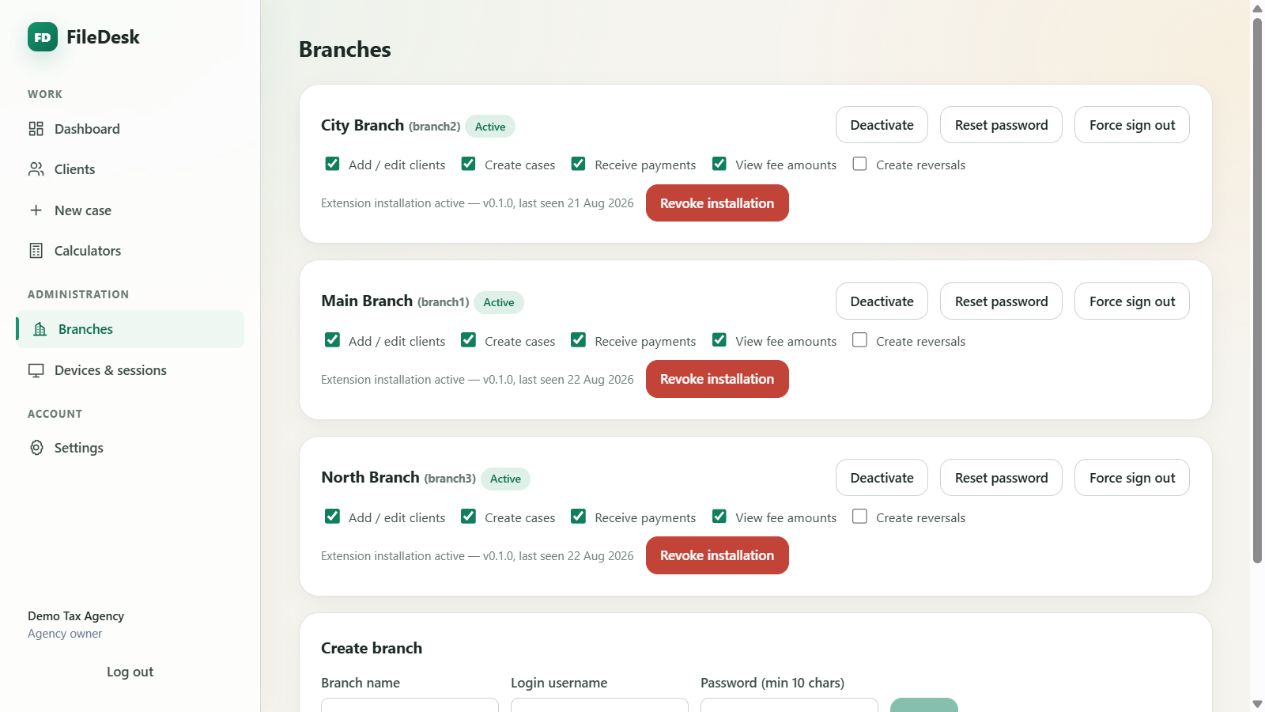
No cap and no per-branch upsell. Create as many offices as you run, each with its own credentials.
Eight permission switches
Add/edit clients, create cases, receive payments, view fee amounts, create reversals, and upload, view or delete documents. Hide money from a branch entirely if that suits you.
Its own dashboard
Each branch sees the cases it owns, its throughput and its return workload — without seeing agency income.
Password resets
Reset a branch password yourself; every session of that branch ends immediately, on every surface.
Force sign-out
End a branch's web sessions across all browsers at once. Its extension keeps working, so field staff are not stranded.
Two web devices, one extension
An account can stay signed in to the web app on two devices, such as a phone and a desktop, and holds one extension installation. A third web sign-in ends the least recently used one, so shared logins stop being invisible.
Deadlines
The season, handled
Alerts before it hurts
Set the filing date per tax year and how many days ahead to start warning. Unsubmitted returns appear with days remaining, sorted by urgency.
Overdue is unmistakable
Past the date, the counter turns and says how many days late — no polite ambiguity.
Closed work disappears
Closing a case removes it from the alert list, so what remains is genuinely outstanding.
Live, not on refresh
Mark a return submitted and every open screen in the agency updates within a moment.
Staff activity log
Every document and register change, accounted for
When a deed goes missing or a figure changes, you should not have to ask around the office.
Who did what, and when
Every document uploaded, opened, edited or deleted, every register item and event added, changed or removed, and every AI summary created — with the time, and whether it was the agency owner or which branch.
On the client, and agency-wide
Each client has an Activity tab for anyone who can open that client. The agency owner also sees one list across every branch.
Written once, never rewritten
Entries are only ever added; FileDesk never edits or deletes them. It never puts amounts, passwords, CNIC or NTN numbers, or file contents into them. Entries repeat the document title or item description your staff typed — so keep ID numbers out of titles.
On your phone
The office in your pocket, with the camera first
The same FileDesk, rearranged for a phone screen — so a paper can be filed while the client is still sitting across the desk.
Scan in the middle
Home, Clients, Scan, Calculators and More sit along the bottom of the screen. Scan asks whose document it is — recent clients first, or search by name, CNIC or NTN — then you capture, name and save.
Install it like an app
Add FileDesk to your home screen and it opens full-screen like any other app: Install FileDesk app on Android, or Share and then Add to Home Screen on an iPhone.
Cleaner, consistent forms
Text boxes, dates and drop-downs look and behave the same on every screen, and the sign-in page has a show-password button.
Each account can stay signed in on two devices at once — a phone and a desk computer, say — while the branch extension stays one installation per account. FileDesk needs an internet connection. More on branches and devices.
See it on a real agency.
A demo agency with a full client list, live cases, returns and a year of ledger history is ready to walk through.